
Virtual Piano is a floating virtual midi keyboard that can be used to send MIDI notes and monitor incoming MIDI notes. It can be used with Ableton Live’s MIDI Computer Keyboard input, external MIDI controllers, touch screens and mouse clicks.
The settings are:
- Size: Sets the total number of keys displayed on the Virtual Piano. The maximum length is from C-2 to G8.
- Offset: Move the keys of the Virtual Piano.
- Zoom: Change the size of the Virtual Piano from 100% to 300%.
- Visual info: Displays information about the Virtual Piano keys (options are: None, Octaves, White Keys, All Keys).
- Theme: Change the color theme of the Virtual Piano (Light/Dark).
- Velocity: Sets the Velocity value sent by the Virtual Piano. When unchecked no velocity changes are applied to incoming MIDI notes. -ESC to close: When this button is activated the “Escape” key on the computer keyboard closes the Virtual Piano.
(Click on the keyboard icon in the device rack to access the settings section)
If the Velocity option is not activated, when clicking using the mouse or using a touch screen, the bottom of the Virtua Piano keys send low velocity values and the top of the keys send high velocity values.


Virtual Piano can be used as a single MIDI input device for all tracks in the project using a virtual MIDI driver. The loopMIDI software created by Tobias Erichsen can be used to create virtual MIDI ports on Windows.
1 – Open loopMIDI and create a new virtual MIDI port. Type the name of the port and press the “+” icon.

2 – In Ableton Live settings > Link MIDI, select the MIDI port created for track input and output.

3 – Create a new MIDI track and select the device you normally use as input, for example Ableton’s Computer Keyboard or your MIDI master keyboard, and set Monitoring to In.
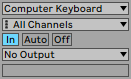
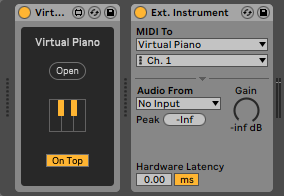
4 – Insert the Virtual Piano device and the External Instrument into the track. Select the virtual MIDI port as the Routing Target on the External Instrument.
You can map the Open button of the Virtual Piano to a key on the computer keyboard to open it quickly at any time.
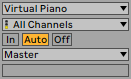
5 – Select the virtual MIDI port as input on all MIDI tracks in the project. Selecting All Ins as MIDI input will duplicate the received notes.
This device is free. Consider making a contribution if it is useful for you.