
EPC Devices
Instructions for use and installation
Installation
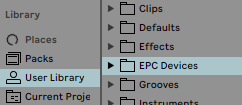
Installation is as simple as copying a folder to the Live user library. In the downloaded ZIP file you will see a folder called EPC Devices.

Copy the EPC Devices folder to the Live user library. It is important that the folder is located in the root directory of the user library. This is necessary for the correct loading of the presets included in each download.
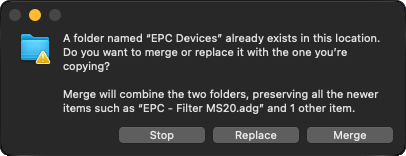
On macOS, remember to select Merge when copying the folder. This will add the files from the new EPC Device without deleting the existing ones. If you drag the folder instead of copying and pasting, remember to hold down the OPTION key to bring up the Merge option.
Loading presets
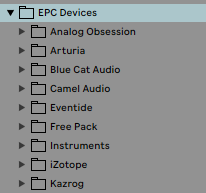
Once installed, you'll find everything organized in subfolders under the name of the VST manufacturer. Inside each one are the presets for loading the EPC Devices.
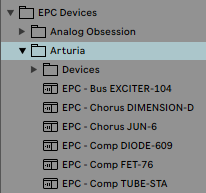
Each preset is an Effects Rack containing the EPC Device and the VST plugin already linked.
It’s not mandatory to have them within an Effects Rack, so you can ungroup them if you wish. The only requirement for everything to continue working is that the EPC Device is located to the left of the VST plugin.
If you decide to move the VST plugin within the project, make sure to also select the EPC Device and move both at the same time.
Problems loading presets
If the following message appears on the device when loading a preset, it is because the location within the user library is incorrect.
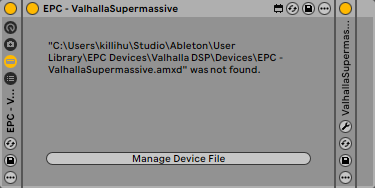
When a preset can’t find the devices in a relative path, it uses the absolute path corresponding to the time the preset was created. Obviously, the absolute path was created on killihu’s computer, and therefore the preset can’t find it on your computer.
You can review the installation process again, or simply use the Manage Device File button to have Live automatically search for the device. Once found and loaded, save the preset for future use. This procedure is also the one indicated if you want to store the devices in a different folder than the one indicated in the installation process.
Versions prior to Live 12
Most EPC Devices should work in versions prior to Live 12, but the presets included in the downloads were created using Live 12, and therefore do not work in earlier versions of Live. In that case, the parameters in the Configure Mode section of the VST rack must be configured manually.
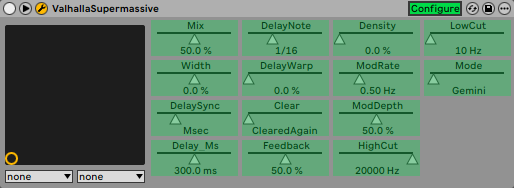
With the Configure button enabled, clicking on a VST plugin control adds it to the rack. Additionally, it is possible to click and drag to change the order of the parameters in the rack.
Each downloaded ZIP file includes a screenshot showing the order of the controls in the VST plugin rack.
Transfer values from the VST to the EPC Device
On EPC Devices that have the following button, it is possible to transfer the values of the VST plugin controls to the EPC Device controls.

The purpose of this button is to transfer presets from the VST plugin to the EPC Device. To do this:
- Activate the button to stop the EPC Device from controlling the VST plugin.
- Then change the preset of the VST plugin.
- Deactivate the button to allow the EPC Device to regain control.
The EPC Device's controls will then be adjusted to match those of the VST plugin.
Note that in some cases this process may need to be performed twice the first time you try to capture the VST plugin preset. After that, it works normally.